How to save the prenote and close the case
you need the prenote open in the editor. If you haven’t generated it yet, start with Edit the prenote before saving it.
Save and copy the prenote
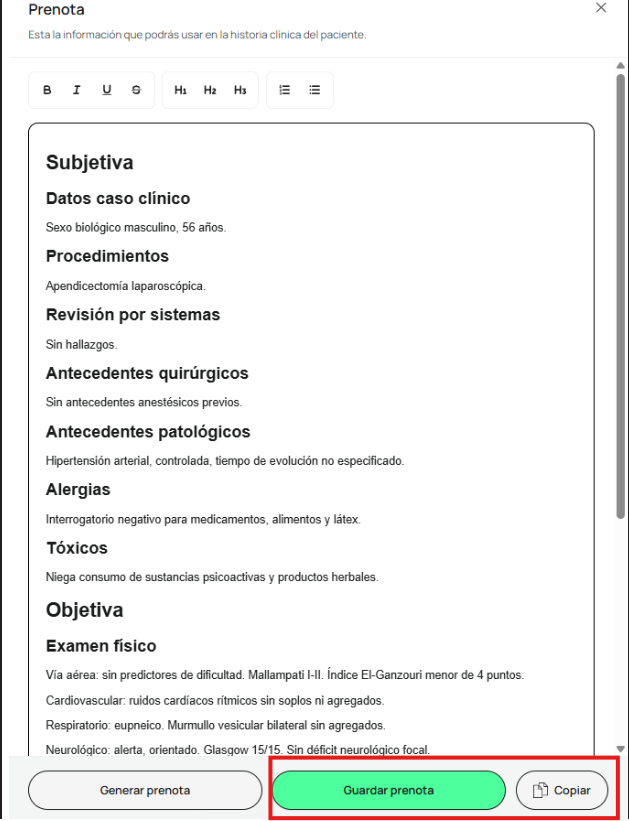
Click Save prenote in the bottom-right corner of the editor: the prenote is saved as the final version in the codex history. Then click Copy, to the right of Save prenote: the content goes to your clipboard so you can paste it into a notepad or straight into your institution’s medical record.
Save as a template and finalize care
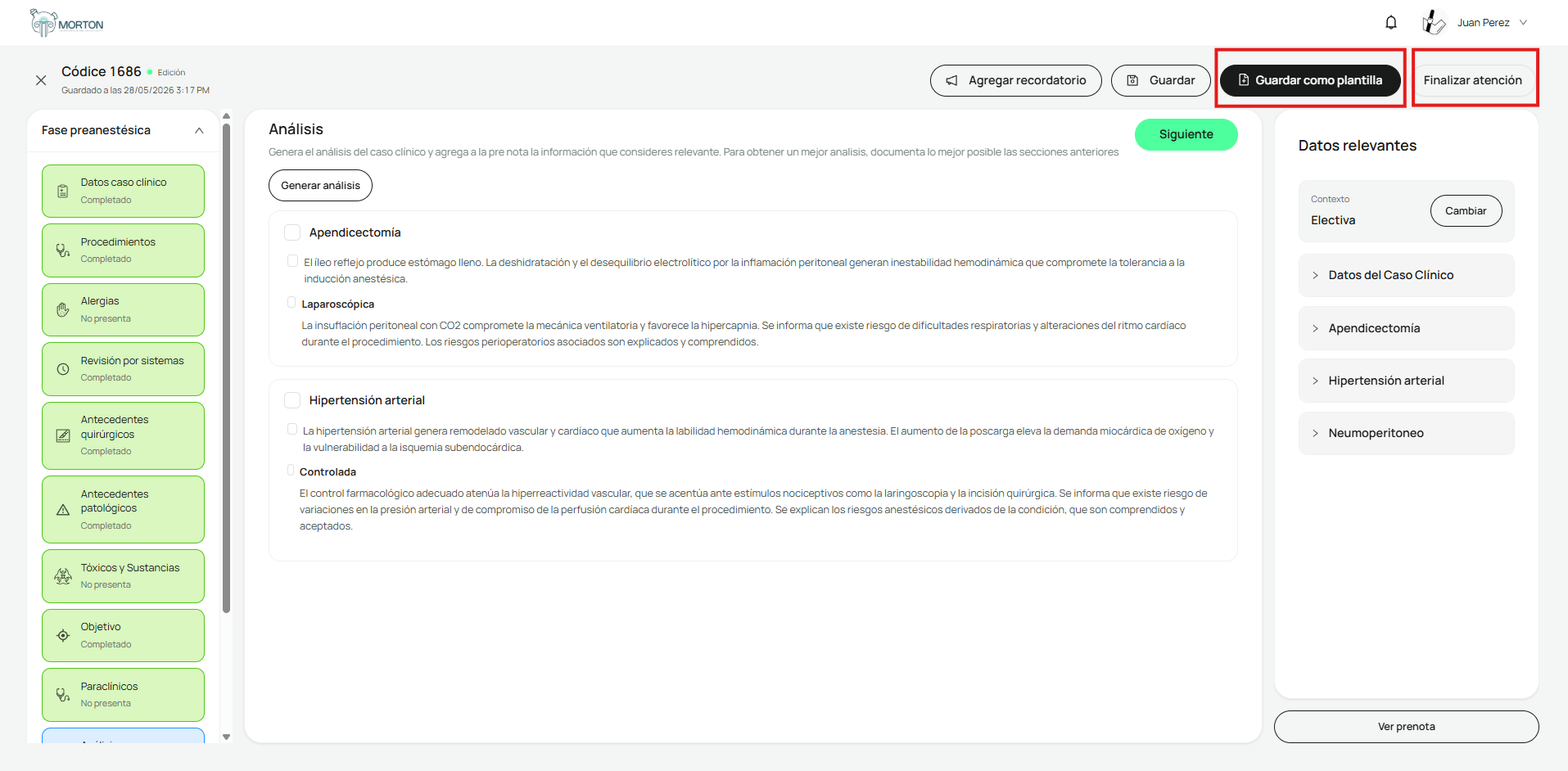
If you’ll be seeing similar cases, click Save as template in the top bar: the case is saved as a template for new codices, so you don’t have to fill out the form from scratch. When you’re ready to close, click Finalize care in the top-right corner. Morton asks you to confirm before closing the case; once it’s finalized, the codex can’t be edited.
Confirm finalization
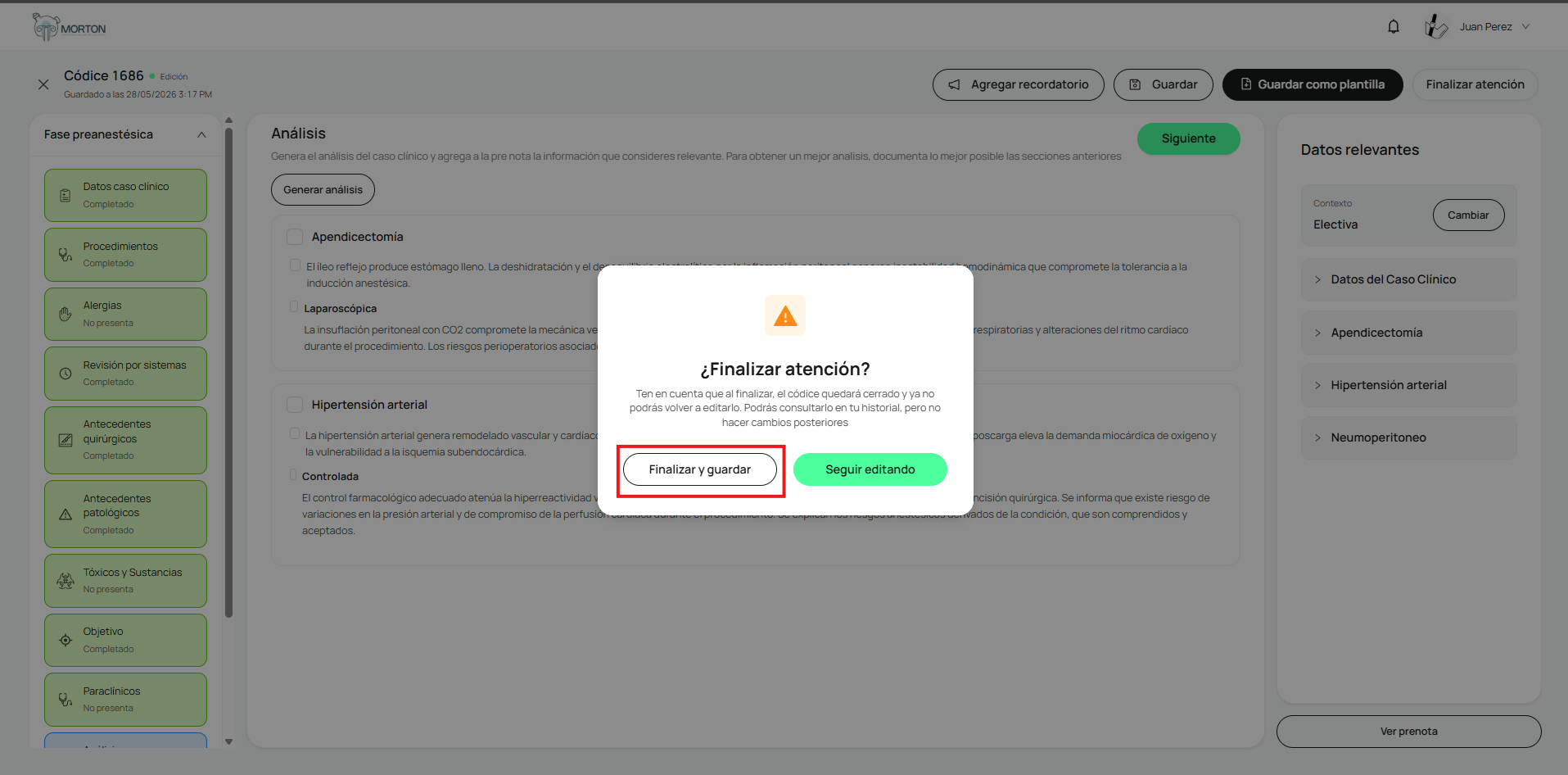
Click Finalize and save in the “Finalize care?” window. The case is saved and closed in your history with its assigned codex. If you still need to make changes, click Continue editing.
Your prenote is saved in Morton and pasted into your institution’s medical record. The case appears in your history under its codex, marked as closed.
What if something goes wrong?
You closed the case before copying
Once finalized, the codex can't be edited. You can still view it in your history, but you can no longer edit it.
You forgot to save it as a template
Do it before you click Finalize care, because once the codex is closed it's only available for viewing.
The formatting was lost when you pasted
Some medical record systems strip bold text and headings when you paste. The text comes through complete; only the presentation changes.
Related articles