How to change my initial settings
make sure you’re signed in to Morton.
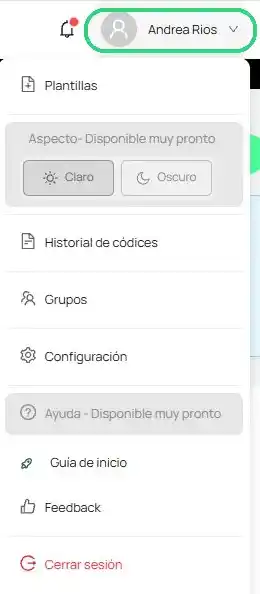
Open your user menu
Click your name in the top-right corner of the screen. The user menu opens.
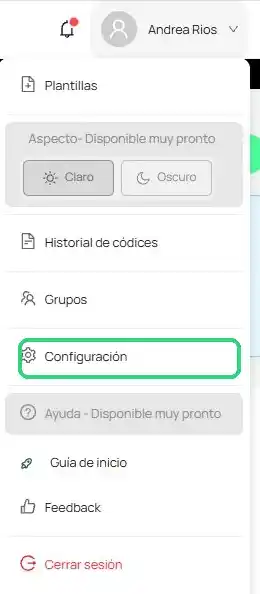
Go to Settings
Click Settings. The screen is organized into three sections in the left panel: Profile, Notifications, and Subscription.
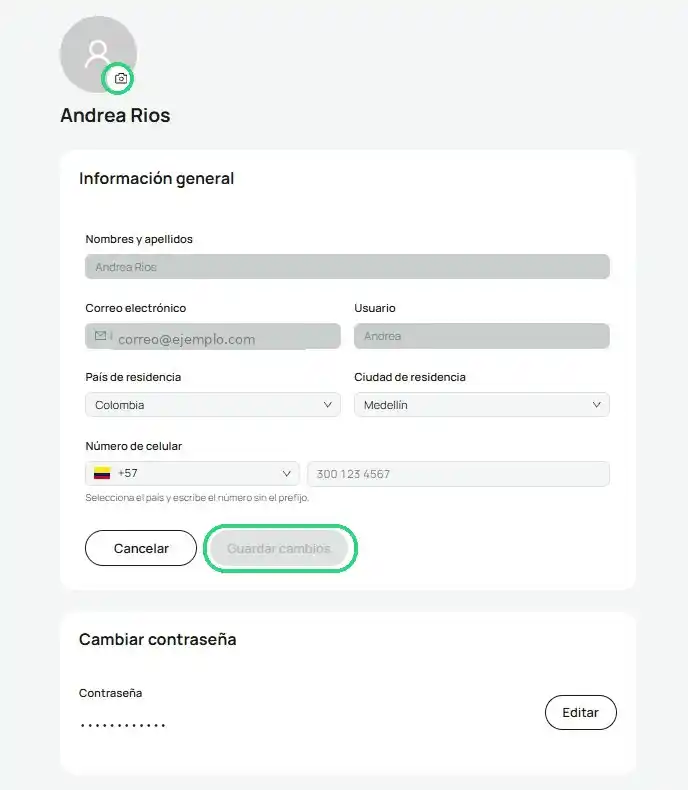
Update your profile
Open Profile and edit your details: Full name, Username, Country and City of residence, and Phone number. When you’re done, click Save changes.
- To personalize your profile, click the camera icon on your photo and upload a photo or any image you like.
- To change your password, go to the Change password section and click Edit.
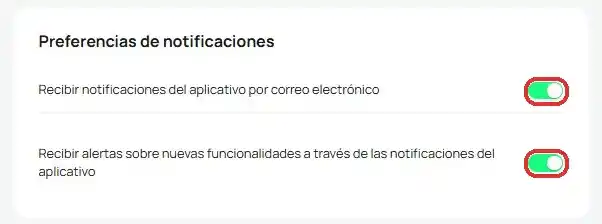
Adjust your notifications
Open Notifications and turn each preference on or off with its toggle: email notifications and alerts about new features. Changes apply instantly.
Your changes are saved to your account. To go back, click Back to Morton at the top of the screen.
The Subscription section brings together your plan, your payment method, and your billing information; to manage them, see the related articles.
What if something goes wrong?
The "Save changes" button is disabled
It's only enabled when you change something. If you didn't change anything, there's nothing to save.
Related articles
Keep learning
Getting started
How to activate my subscription
Read article →Getting started
What is Morton and what is it for?
Read article →Subscription and billing
Change your payment method
Coming soon