Closing the intraoperative phase
You need all 14 sections of the intraoperative phase filled in. If you haven’t gotten that far yet, start with How to document the intraoperative phase.
Check that all 14 sections are complete
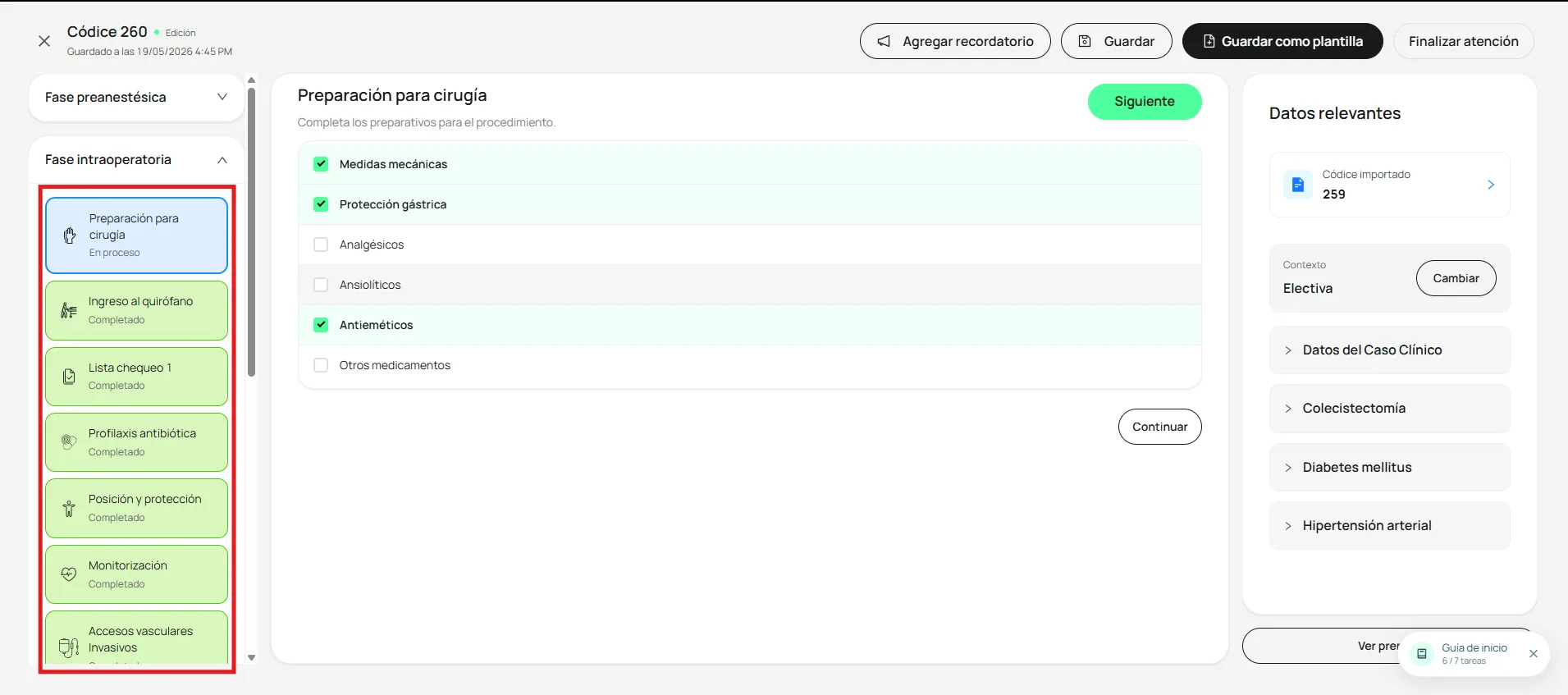
In the codex side panel, the Intraoperative phase shows each section color-coded by status:
- Green — “Complete.”
- Blue — “In progress.”
- Yellow — “Incomplete.”
Before generating the prenote, every section should show as “Complete.” If any is in another state, open it, fill in the missing fields, and click Next.
Open and generate the prenote
Click View prenote to open the editor, then click Generate prenote. Morton pulls all the intraoperative information together into a structured document, ready for review. The more you recorded during the procedure, the more complete the note will be.
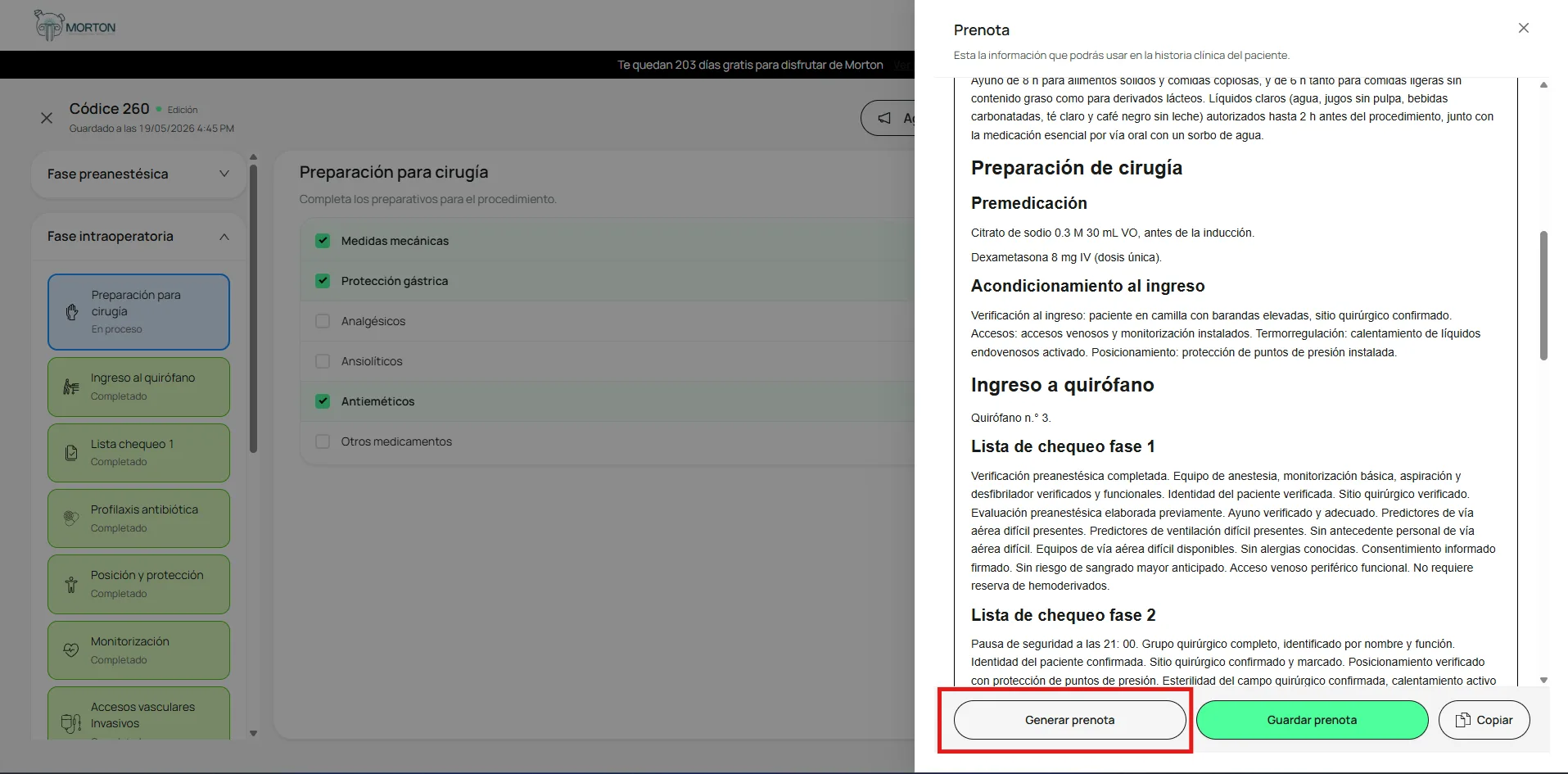
From here on, the flow is the same as for the pre-anesthetic prenote:
- To edit and format the text, follow Edit the prenote before saving it.
- To save it, copy it into your institution’s medical record, and close the case, follow How to save the prenote and close the case.
Your intraoperative prenote is ready for review. The case stays in your history under its codex, so you can pick it up again or continue with the postoperative phase.
What if something goes wrong?
A section is still "Incomplete" or "In progress"
That section's content isn't included in the generated prenote. Open it, fill in the remaining fields, and click Next; once it turns green ("Complete"), generate again.
An Intraoperative record doesn't show up in the prenote
Records in the Intraoperative module (urinary catheter, tourniquet, fluid balance, among others) are saved when you complete their form. Make sure the section is green; if something's missing, open it and finish filling it in before generating.
You generated the prenote twice and see duplicated content
Each time you click Generate prenote, Morton adds content without deleting what's already there. Edit the prenote manually to remove the duplicates before saving.
Related articles