How to activate my subscription
signing up and the 7-day trial don’t require a card. You only need a payment method when you choose a plan and complete the purchase.
Open the sign-up page
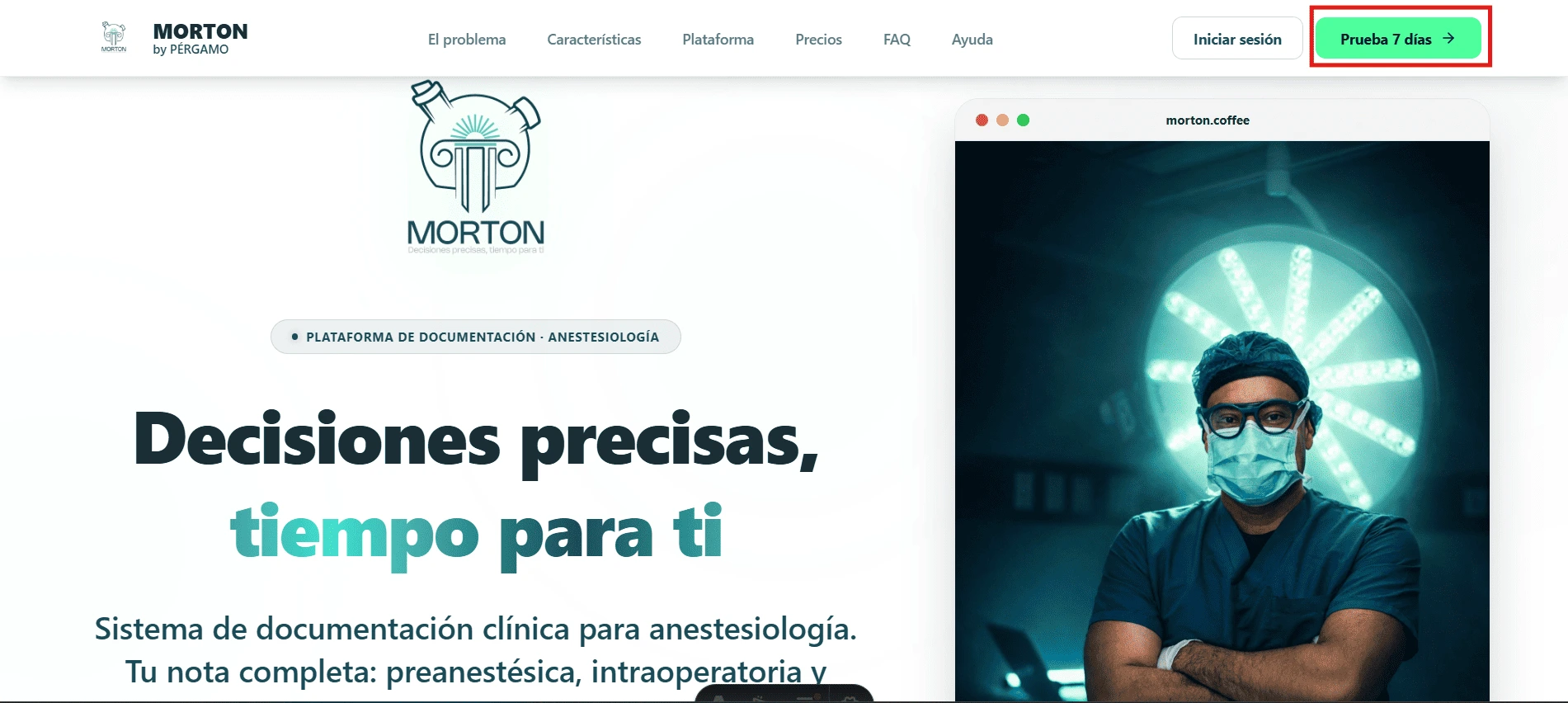
Go to morton.coffee and click Try it free for 7 days.
- If you land on the sign-in screen, click Sign up now.
Create your account
On the “Sign up for Morton” screen, enter your Email address, create a Password, and type it again in Repeat password. Check both boxes: you accept the terms and conditions and confirm that you’re an anesthesiologist, anesthesia technician, or anesthesia resident. Click Sign up.
Complete your profile
On the “Complete your registration” screen, enter your Full name, create your Username, and select your Country and City. The phone number is optional. Click Sign up.
your 7-day free trial starts as soon as you sign up, with full access to the platform. No payment method is requested during this period. When it ends, Morton takes you to “Choose your plan”.
Choose your plan
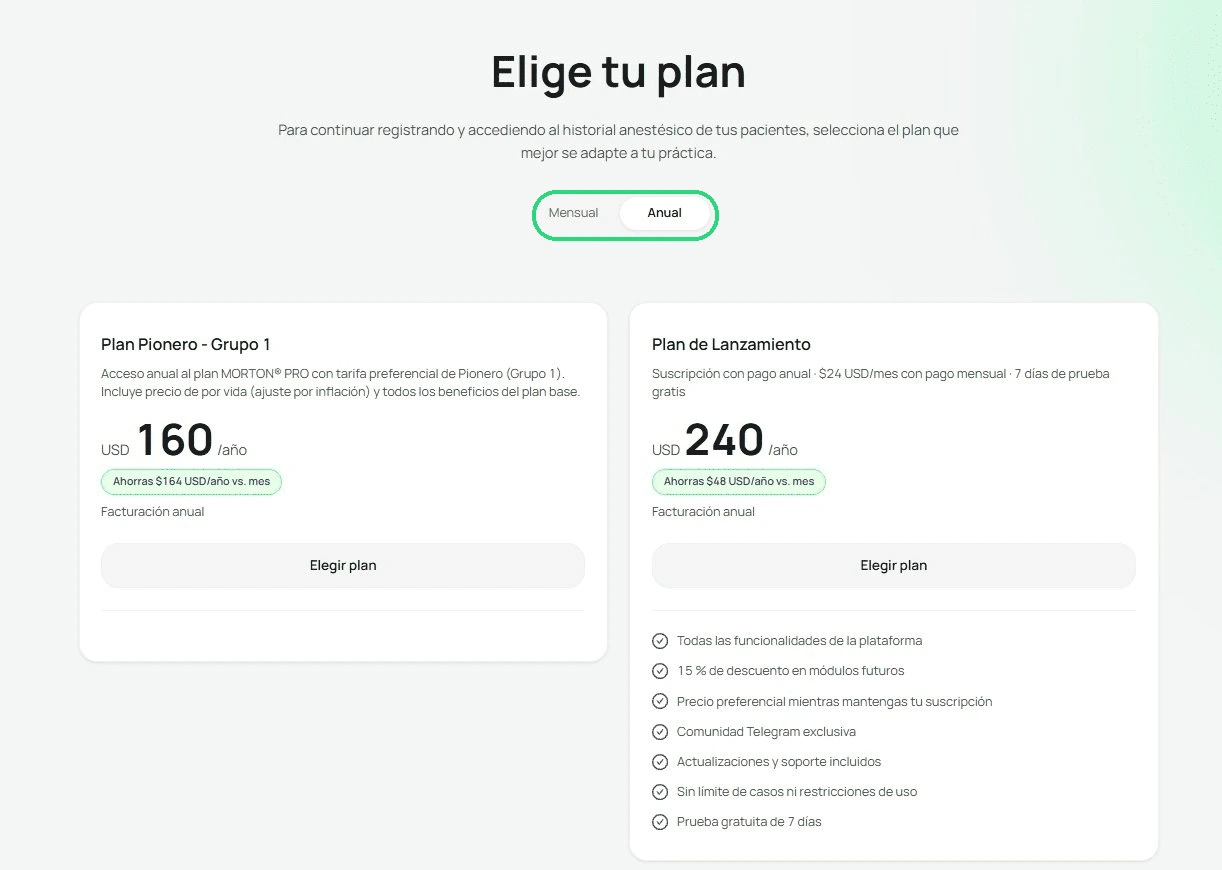
If you’re already signed in and aren’t on this screen, click the View plans banner at the top, just like at the start. Once you’re on “Choose your plan”, switch between Monthly and Annual with the toggle, compare the options, and click Select plan on the one you prefer.
Pay on the payment gateway
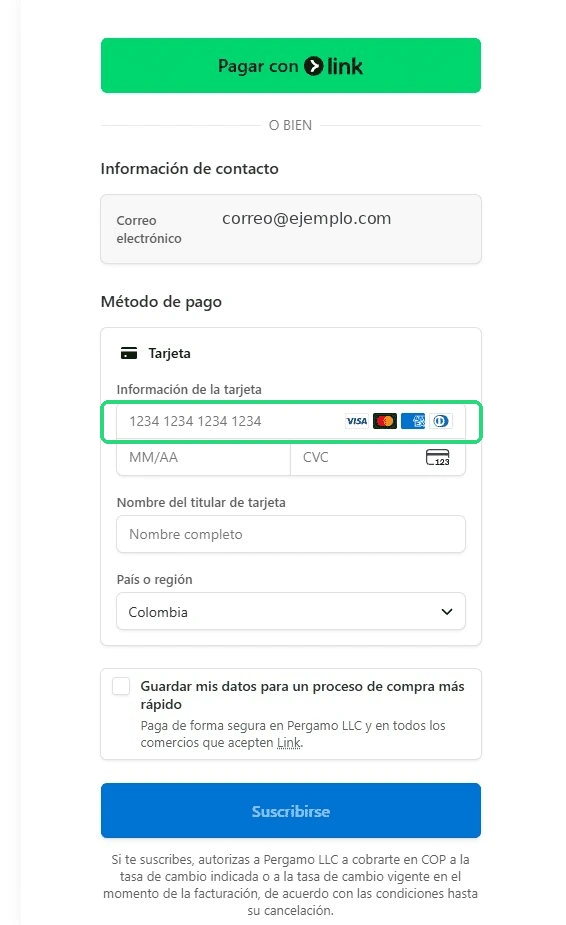
Click Go to checkout when the notice about being redirected to the payment gateway appears. On the payment gateway, choose the currency (COP or USD), enter your card details (or pay with Link), and confirm the purchase. Your subscription is activated as soon as the payment goes through.
Your subscription is active and you have full access to Morton. To come back later, go to morton.coffee, click Log in, and enter your email and password.
What if something goes wrong?
The Sign up button doesn't activate
Make sure both passwords match and that you checked both boxes (terms and conditions + role confirmation).
You completed the payment, but the platform is still locked
Access is enabled once the payment gateway confirms the payment. Wait a few minutes and sign in again.
Related articles
Keep learning
Pre-anesthetic assessment
How to create a pre-anesthetic assessment step by step
Read article →Getting started
How to change my initial settings
Read article →Subscription and billing
Automatic renewal: how it works
Coming soon